
 View what's in this topic
Troubleshooting uStore Integration with Enfocus Switch
This checklist provides step-by-step actions and common error messages to help diagnose and resolve issues with Enfocus Switch integration in uStore workflows.
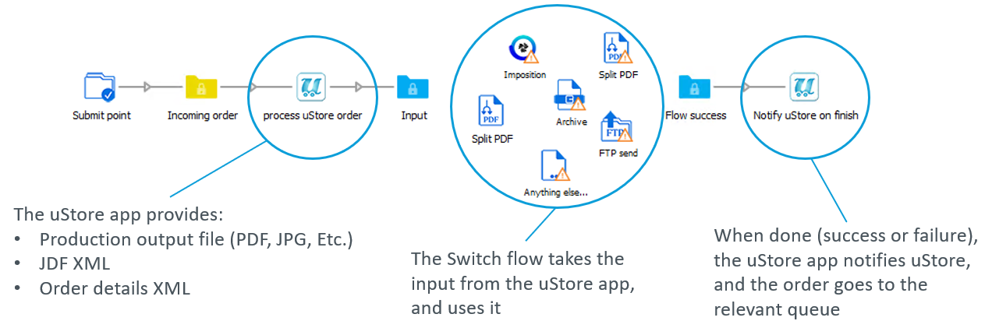
Troubleshooting Quick-Reference
Causes for Common Integration Issues
-
Switch port is closed.
-
Switch server is offline.
-
The required Switch flow is stopped.
-
Incorrect flow is selected in uStore.
-
Invalid Switch username or password.
-
uStore is not accessible from the Switch server.
-
Invalid Switch flow logic - in this case, the flow logic and Switch logs should be reviewed.
-
Incompatible versions - uStore must be version 25.3 or higher, and Switch must be version 25.07 or higher.
Troubleshooting Resources
The following locations are recommended to perform your investigation, when there's signs of trouble.
-
uStore Orders screen, under the “Failed Jobs” queue. Look at the column “Error Message”. These are some examples of error messages and the likely reason:
-
“Order failed to send”: Switch webhook is unreachable or has a malformed address.
-
“Status update failed”: missing / wrong Switch credentials or incorrect endpoint contacted.
-
“No artwork file found”: output file retrieval not enabled in uStore app on Switch side.
-
“Job not created”: Composite product failed to split correctly.
-
-
Switch Messages screen.
-
uStore local logs, in the folder XMPLogs\uStore\AdminApp
Troubleshooting on the uStore Side
|
Issue/Symptom |
Likely Cause(s) |
Recommended Action(s) |
|---|---|---|
|
Flow list synchronization failed |
Wrong provider type, bad URL, credentials, or network |
Check provider type, URL format, credentials, and network access |
|
Partial list of flows |
Some flows are inactive in Switch |
Activate missing flows in Switch |
|
Status update failed |
Missing credentials or incorrect endpoint |
Verify credentials and endpoint |
|
Order failed to send |
Webhook unreachable or malformed address |
Check webhook URL and network access |
Troubleshooting on the Enfocus Switch Side
|
Issue/Symptom |
Likely Cause(s) |
Recommended Action(s) |
|---|---|---|
|
Flow not starting |
Network/firewall issues, multiple starting uStore apps |
Check network/firewall settings, make sure there's only one uStore app with the action “Receive order” |
|
No output file available |
Output not enabled, cleanup set to Yes, network/firewall issues |
Enable output, set cleanup to No (temporarily), check network/firewall settings |
|
No order details or JDF data |
App not set to retrieve details, missing export action |
Enable “Get Order Details”, add “Export metadata” action |
|
No artwork file found |
Output file retrieval not enabled |
Enable output file retrieval in app |
|
Job not created |
Composite product not split correctly |
Review flow logic and Switch logs |
Full Flow of the integration and Possible Issues in Each Stage
1. uStore System Set Up
Refer to the online documentation regarding Setting Up Prepress Workflow Providers
Basic setup includes:
-
Prepress Workflow Provider
-
Switch user name and password credentials
There is no validation at this stage, so if there is a wrong setting there will not be an indication.
2. uStore Product Setting: Prepress Setup
Once you go into the Prepress Setup screen, uStore will connect to the workflow providers to get the list of available flows (this also happens when going to the Orders screen, and there is no indication there for this process).
After synchronizing, there should be a message saying: "Synchronization completed successfully".
When going to “Add workflows”, you should see the full list of flows, including those from the Switch server that was defined during system set up.
Issue 1: Synchronization failed
Symptoms:
Symptom 1: You see the message: "Synchronization completed, some of the prepress providers failed."
Symptom 2: You don't see the Switch workflow provider with any flow.
Possible causes:
-
The workflow provider does not have the correct Provider Type selected. It should be “Enfocus Switch”.
-
The URL fields are not in the correct format. It should be:
http://address:port
For example:
http://10.1.1.55:51088 -
The gateway URL can't be accessed from the uStore server over the specified port.
-
The global configuration keys contain incorrect credentials.
Troubleshooting Steps:
-
Check and select “Enfocus Switch” as the Provider Type.
-
Verify the URL format includes a colon “:” between address and port.
-
Open a browser from inside the uStore server, and try accessing the gateway URL address that is defined in uStore. You should get an error page with “Cannot GET /”.
-
Check ports definition in Switch, under “Edit > Preferences > Web Services”.
-
Ensure credentials are correct, including case sensitivity and no extra spaces.
-
Log into the admin interface in Switch using the credentials that are defined in uStore.
Issue 2: Partial list of flows
Symptom:
Only some of the flows are showing, and not all of them.
Possible causes:
The missing flows are not active.
Troubleshooting Steps:
In Switch, check that the missing flows are active, and that they are not stopped.
3. Create a Switch flow
The only recommendation here, is to name the flow starting with “uStore”. Flows that start with the string “uStore” appear at the top of the list of flows in uStore.
4. Switch: Add uStore App to Switch Flows and Set It Up
Get the XMPie uStore app from the Enfocus App Store:
https://www0.enfocus.com/en/appstore/product/xmpie-ustore
Follow the standard installation process for apps in Switch. You may need to restart your Switch server, for the app to appear.
Once the app is visible in Switch, you should be able to see it when you right-click, under “Add > Apps > uStore”:
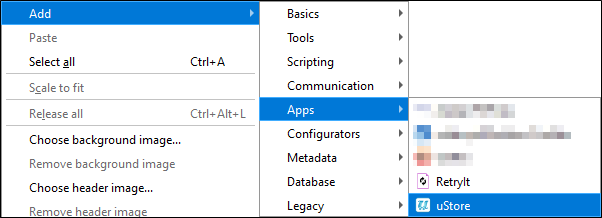
Add the uStore app twice into the Switch flow:
-
At the beginning of the flow, with action "Receive Order".
-
At the end of the flow, with the action "Send Status To uStore".
Extract XML data
Steps:
-
Add the action to the flow.
-
Set up the “Dataset name”.
-
Connect to a folder.
-
Set the connection to the type of job “Log”.
To extract the received JDF or order details XML data, add the “Export Metadata” action, by right-clicking and going into “Add > Metadata > Export Metadata”:
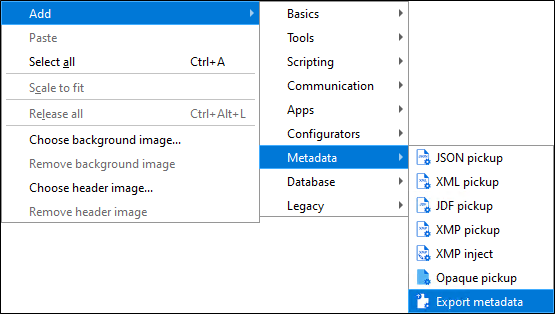
To get the XML details in a file, enter in the “Dataset name” field the following value:
-
For JDF, use the value: uStoreJdf
-
For order details, use the value: uStoreOrderDetailsXml
Create a connection from the action to a folder, and then click on the connection and change the value of the field “Carry this type of jobs” to “Log”.
This is an example of a simple fully-functioning flow, that includes exporting the metadata of the order details XML:
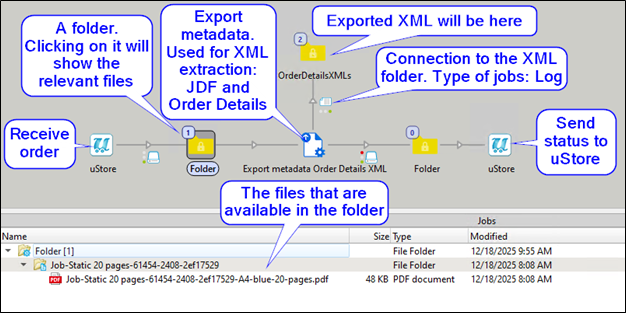
5. uStore: Create an Order with Prepress
When processing orders through the order queues, if a workflow is defined, the order will pass through uStore's prepress workflow order queues.
-
When items are in the “Ready for Preress” queue, administrators can manually or automatically send items to the workflow.
-
uStore sends JDF to Switch. In this stage, the order in uStore will wait in the “Prepress in Progress” queue.
6. Switch Starts the Flow Using the uStore App
Once you create an order that has prepress set up with the Switch flow, you should see the output file appear in the first folder, and other files according to your flow.
Issue 1: No output file available
Symptom:
The output file should be available in the first folder that is connected to the uStore app, but it does not appear in that folder.
Possible causes:
-
The uStore app is not set up to get the output file.
-
There's more than one uStore app with the action “Receive order”.
-
The uStore app that sends status back to uStore is set to perform cleanup of the received files (delete the files) once the flow is complete, and the flow was completed.
-
The Switch server does not allow incoming communication from the uStore server, so the flow never started.
-
The uStore server does not allow incoming communication from the Switch server, so the Switch server can't retrieve the output file.
-
The uStore Mall settings specify “uStore Server IP” address that the Switch server either cannot access or cannot resolve.
-
Temporary downtime or network issue.
Troubleshooting Steps:
-
Check the uStore app, to have the option “Get Output File” set to Yes.
-
Make sure there's only one uStore app with the action “Receive order”. The uStore app with this action creates the webhook when the flow is being activated, so there can be only one such app.
-
Check the uStore app that sends status back to uStore. See that the option “Clean Up File Received from uStore” set to No. You can change the setting back to Yes, once you are done with troubleshooting the flow.
-
Make sure that the Switch server allows traffic from the uStore server address. Check the network logs.
-
Check that “Presets > System Setup > Mall > uStore Server IP” is set up to an address that the Switch server can access and can resolve. If the address can't be resolved, then enter a resolvable address in the uStore app, under the option “Custom uStore URL”.
-
Add retry on error, using an app such as “RetryIt”, that can be found in the Enfocus App Store. This will allow you to rule out temporary issues, such as downtime for maintenance or intermittent network issues.
Issue 2: No Order Details or JDF data
Symptom:
In the first folder that is connected to the uStore app, there's only the output file, without any XML data.
Possible causes:
-
The uStore app was not set up to retrieve order details.
-
The XML data is a part of the metadata, and it needs to be extracted using a dedicated action.
Troubleshooting Steps:
-
Set up the uStore app to retrieve order details. Set the option “Get Order Details” to Yes.
-
Set up an “Export metadata” action in your flow. Refer to the section “Extract XML data” in this document.
General Troubleshooting
1. Versions Compatibility
Before anything else, check that the versions are compatible with the integration:
-
uStore version 25.3 and above
-
Switch version 25.07 and above
2. Verify Workflow Provider Setup
Steps:
-
In Mall settings, the setting “uStore Server IP” must have an address that is accessible by the Switch installation.
-
Open uStore Admin and navigate to Workflow Providers.
-
Ensure Enfocus Switch provider is created.
-
Check configuration options: address and port of Switch interfaces should be accessible from the uStore server.
-
Global configuration keys should have valid Switch user values in them.
-
Go into a product and into the Prepress Setup:
-
See that there's at least a single workflow.
-
Let the sync complete and open the “Add workflows” option to see that the list is complete.
-
3. Check Order Transmission
Steps:
-
Confirm orders are being sent from uStore to Switch.
For full details, verify OrderDetails XML and output file links in JDF payload. If the options to send the files are selected in the Switch app, then the files should appear in the output folder.
Common Errors:
-
Error: Missing output file or OrderDetails XML – make sure to enable the output file and order details actions in the uStore app in Switch.
-
Error: Payload incomplete – Check webhook configuration.
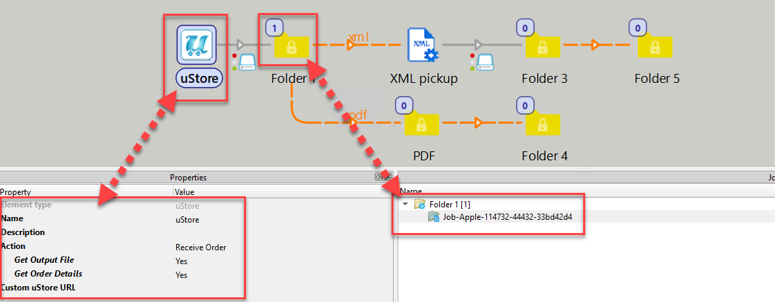
The following is an example of a problem, in which the app is defined to get the files but nothing appears in the folder. This is a result in a failure to transfer the JDF file to Switch:
4. Authentication and Security
Steps:
-
Verify HTTPS and basic authentication are enabled on both uStore and Switch servers.
-
Ensure Switch user credentials are stored securely and encrypted in the global configuration keys:
EnfocusSwitchUser
EnfocusSwitchPassword -
Try to access the Switch admin interface using these credentials.
5. Common Issues and Performance
Steps:
-
Monitor job volume and Switch performance.
-
Consider license adjustments for parallel processing if delays occur.
6. JDF Creation and Contents
Steps:
-
Check that a JDF file is being created. Location:
X:\XMPie\uStore\App\uStoreShared\JDF -
In the JDF file, check that both of the following fields exist:
<FileSpec MimeType="application/pdf" URL="http://ADDRESS/uStore.CommonControls/PrePress/output.pdf?id=LONG_STRING" />
And:
<FileSpec ID="FS1" URL="http://ADDRESS/uStore.CommonControls/Orders/OrderDetailsXmlHandler.ashx?id= LONG_STRING " MimeType="text/xml" Class="Parameter" Status="Available" /> -
Regarding the above URL:
-
Verify that the address is the one that is set for the uStore server in the uStore Mall settings.
-
Copy the full URL addresses to the Switch server, and check that they work from within the Switch server.
-
High-Level Technical Information
It's helpful to understand the basic scenarios where issues may occur in the uStore/Switch integration. There are two main stages to consider:
-
Flow synchronization (using the Switch API) - This is the process that retrieves the full list of flows from Switch. This happens when accessing the Orders tab or the Product Prepress page.
-
Flow communication (using the Switch webhook and orderStatus JMF request back to uStore) - This occurs during the actual prepress process.
Log Files
uStore side
-
Location: XMPLogs\uStore\AdminApp
-
Relevant for: Flow synchronization and communication with Switch
Switch side
-
Location: Messages tab in the Switch interface
-
Features: Filtering, export options, and detailed messages useful for troubleshooting integration issues
uStore Log Details
Flow Synchronization
-
Positive case:
GetPrepressWorkflows. Enfocus Switch 'Flows - List' REST API response: <JSON response> -
Negative cases:
-
Login failure:
Error on Enfocus Switch login request <Exception message>
Action: Ensure the Switch server is running, confirm Switch provider URL and port accessibility, and verify login credentials (EnfocusSwitchUser, EnfocusSwitchPassword in Global Config). -
Flows list API error:
SyncuStoreDB failed to get workflow lists. <Exception message>
Action: Check that the Switch server is running and confirm the Switch user has sufficient permissions to call the “list flows” REST API.
-
Flow Communication
-
Positive case:
-
SubmitJDF Webhook Enfocus Switch request {requestUrl}, response: {result}
-
JMFGateWay Signal Received : <JMFSignal – Completed or Aborted>
-
-
Negative cases:
Webhook error response:
HTTP request {requestUrl}, statusCode: {response.StatusCode}, result: {result}
Action: Investigate based on the status code and result. Possible causes:-
Switch server is offline → turn it on
-
Required Switch flow is stopped → start it
-
Error during callback → review Switch logs
-
-
Authorization error when sending order status back to uStore:
JMFResponseHandler. Authorization error <Exception message>
Action: This usually indicates an invalid secure query string. Treat as a potential intrusion attempt (e.g., someone sending an invalid URL).
In case of escalations, R&D will require logs from the Switch side.
To provide these:
-
Open the Messages tab in Switch Designer
-
Use the gear icon → Export to save logs
Webhook Behavior and User Configuration
In general, no action is required, the webhook works out of the box.
However, users may choose to override some default options in the uStore app.
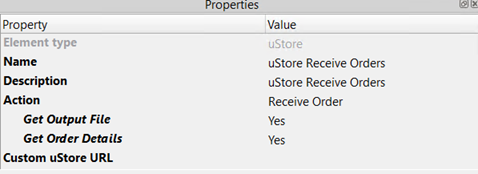
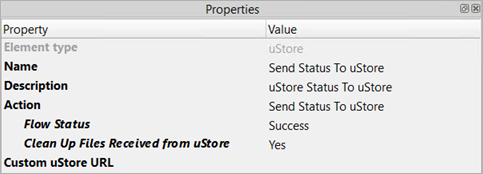
Example:
-
A user can set a Custom uStore URL to replace the default base URL that appears in the webhook request data.
-
If this is done, it must be configured in both app elements:
-
Receive Order
-
Send Status To uStore
-
Important Considerations
-
Webhook creation:
-
The uStore app with Action = Receive Order automatically creates the webhook during the flow start event.
-
For this reason, there must be only one Receive Order app in a flow.
-
Multiple Send Status To uStore apps can be included in the same flow.
-
-
Dataset names:
-
In the first version of the app, dataset names are hardcoded:
-
JDF → uStoreJdf
-
Order details XML → uStoreOrderDetailsXml
-
-
Customers may need to reference these datasets in their flows.
-
-
Accessing output files as jobs:
-
If a customer needs to access the output file as a job, they should use the Job Dismantler app to extract it from the job folder.
-
More info
-
Confirm that the Switch server address and port are accessible from the uStore server, and vice versa.
-
To check the Switch port and protocol, go to: Edit → Preferences → Web Services.
Verification steps
-
Ensure the Switch server address and port are entered in the correct format within uStore.
-
Add the Switch username and password in the Global Configurations.
-
On the Switch side, confirm that a webhook is available.
Created by Dotan Mazor on February, 2026