
 View what's in this topic
Preparing Your DNS for XMPie Cloud Hosting
Custom Domain Configuration Guide for Customer IT Teams | Knowledge Base Article
Who is this article for? This article is for customer IT administrators who manage DNS for a custom domain (e.g., yourdomain.com) pointed at an XMPie-hosted application on a dedicated cloud account. It explains the DNS changes your IT team will need to make when setting up a new hosted environment or migrating to a new one.
Using an xmpiecloud.com address only? If your application uses only an *.xmpiecloud.com address (no custom domain), no DNS changes are required on your end — XMPie manages this automatically. This guide applies only to customers with custom domains.
How XMPie Cloud Hosting Works
Your XMPie application runs on dedicated servers in Amazon Web Services (AWS), protected by an Imperva Web Application Firewall (WAF). When users visit your site, their traffic flows through several layers before reaching your application:
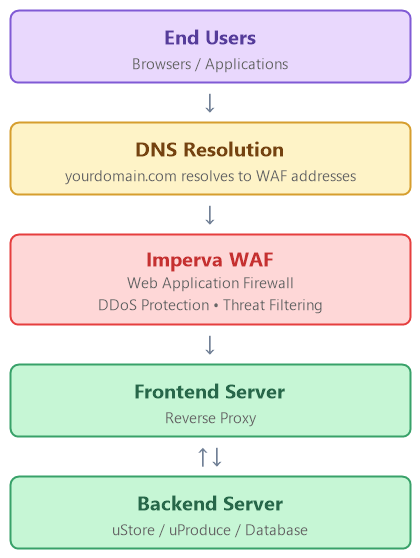
Because traffic is routed through the Imperva WAF, your DNS records must point to the WAF — not directly to the XMPie servers. This is what enables DDoS protection, threat filtering, and SSL certificate management for your domain.
Understanding the Required DNS Records
During setup, XMPie DevOps will provide you with values specific to your environment. The records required depend on your domain configuration:
Which records do you need?
-
Apex/root domain (e.g.,
yourdomain.com) — Requires two A records pointing to WAF IP addresses, plus a TXT record for SSL verification. -
Subdomain only (e.g.,
store.yourdomain.com) — Requires only a CNAME record pointing to the WAF endpoint, plus a TXT record for SSL verification.
The table below shows the full set of records. Your XMPie DevOps contact will confirm which ones apply to your setup.
|
Record |
Type |
Value (example) |
Purpose |
|---|---|---|---|
|
|
A |
|
Routes root domain traffic through the WAF |
|
|
CNAME |
|
Routes www subdomain traffic through the WAF |
|
|
TXT |
|
Proves domain ownership for SSL certificate issuance |
XMPie DevOps will provide the exact values for your domain before go-live. The sections below explain each record type in detail.
A Records — Root Domain (Two IP Addresses)
You will receive two IP addresses for your root domain's A records. This is standard for enterprise WAF services and provides:
-
High Availability — Imperva's Anycast DNS infrastructure monitors the health of both IPs and can automatically withdraw an unhealthy address from DNS responses, directing traffic to the healthy endpoint
-
Load Distribution — Traffic is spread across both entry points for better performance
-
DDoS Resilience — Multiple entry points help absorb and distribute attack traffic
Both IP addresses must be added. Configure two A records for your root domain, each pointing to one of the provided IPs. Most DNS providers allow multiple A records for the same hostname.
CNAME Record — www Subdomain
Your www subdomain uses a CNAME record instead of A records. This is because of a fundamental DNS rule:
-
Root/apex domains (e.g.,
yourdomain.com) cannot use CNAME records — this is a DNS standard (RFC) limitation. They must use A records with direct IP addresses. -
Subdomains (e.g.,
www.yourdomain.com) can use CNAME records, which point to another hostname rather than an IP. This gives the WAF provider flexibility to update routing without requiring DNS changes on your end.
Both records work together to ensure users can reach your site whether they type yourdomain.com or www.yourdomain.com.
TXT Record — SSL Certificate Verification
To secure your custom domain with HTTPS, GlobalSign (the SSL certificate authority used by Imperva) needs to verify that you own the domain. This is done by adding a TXT record containing a verification code.
Important: ADD a new TXT record. Do NOT delete existing TXT records.
Your domain likely has existing TXT records serving other purposes — SPF (email sender verification), DKIM (email signing), DMARC (email policy), or other service verifications. Multiple TXT records can coexist on the same domain. Deleting existing records could break email delivery or other services.
Depending on your DNS provider, the host field may need to be entered as:
-
yourdomain.com(full domain name), or -
@(shorthand for the root domain — used by providers like GoDaddy, Cloudflare, Route53)
After adding the TXT record, notify your XMPie support contact (see "How to Notify XMPie" below) so the DevOps team can trigger SSL validation in the WAF system. The SSL certificate is typically issued the same day once the TXT record has propagated.
When to Make DNS Changes
The timing of DNS changes is coordinated with your XMPie support team. Here is the typical sequence:
|
Timeframe |
Action |
Who |
|---|---|---|
|
1-2 weeks before go-live |
Add the TXT record for SSL certificate verification |
Your IT team |
|
1-2 weeks before go-live |
Validate SSL certificate in WAF |
XMPie DevOps |
|
Go-live day |
XMPie completes environment setup (server configuration, application deployment) |
XMPie DevOps + PS |
|
Go-live day |
Update A records and CNAME to point to WAF endpoints |
Your IT team |
|
After DNS changes |
Verify application is accessible on new infrastructure |
Both teams |
DNS propagation can take up to 48 hours depending on your domain's TTL (Time to Live) settings. To minimize switchover time, consider lowering your domain's TTL to 300 seconds (5 minutes) a few days before go-live, then restoring it afterward.
Key point: The TXT record for SSL verification can — and should — be added well before go-live day. It causes no disruption to your live site. Completing this step early eliminates a common source of delays on go-live day.
Testing Before DNS Cutover
Before switching your production DNS records, you can verify that your application is working correctly on the new infrastructure using a temporary staging URL.
Staging URL
XMPie DevOps will provide a temporary staging URL in the format:
https://customername.xmpiecloud.com
This URL points directly to your new environment through the WAF, allowing you to:
-
Verify the application loads correctly
-
Test login and core functionality
-
Confirm SSL certificate is working
-
Check that all assets (images, scripts, styles) load properly
Recommended: Complete your testing on the staging URL and confirm everything works before making any DNS changes to your production domain. This ensures a smooth cutover with no surprises.
What If Something Goes Wrong
If you encounter issues after switching your DNS to the new environment, you can roll back by reverting your DNS changes.
Rollback Procedure
-
Revert your DNS records — Change your A records and CNAME back to the previous values (your old WAF IPs and CNAME endpoint)
-
Wait for DNS propagation — Traffic will gradually shift back to the old environment as DNS updates propagate
-
Verify your site is working — Confirm that your application is accessible on the old environment
Keep your old DNS values. Before making any DNS changes on go-live day, document your current A record IPs and CNAME values. This ensures you can quickly revert if needed.
Minimize rollback risk: Thoroughly test your application using the staging URL (Section 4) before switching your production DNS. Most issues can be identified and resolved during staging, eliminating the need for rollback.
DNS Change Checklist
Use this checklist to track your progress. Your XMPie support contact will provide the specific values for items marked with brackets.
-
Received DNS configuration details from XMPie DevOps (two WAF IPs, CNAME endpoint, TXT verification value)
-
Identified who on your IT team has DNS management access for your domain
-
Added TXT record for SSL domain verification (1-2 weeks before go-live)
-
Notified XMPie support that TXT record has been added
-
Confirmed with XMPie that SSL certificate has been validated
-
Lowered DNS TTL to 300 seconds (optional, a few days before go-live)
-
On go-live day: Updated A records for root domain (two IP addresses)
-
On go-live day: Updated CNAME for www subdomain
-
Verified HTTPS access on
https://yourdomain.com -
Verified HTTPS access on
https://www.yourdomain.com -
Notified XMPie support that DNS changes are complete
-
Restored DNS TTL to standard value (if it was lowered)
How to Notify XMPie
After completing DNS changes (both the TXT record and the go-live day A/CNAME updates), notify XMPie so the team can validate your configuration:
-
Email:
support@xmpie.com -
Support case: If you have an active support case for your project, reply directly to the case thread or update the case with your assigned support contact
Include in your notification:
-
Which records you changed (TXT, A, CNAME)
-
When the changes were made
-
Any issues or anomalies you observed
Frequently Asked Questions
Why can't I use a CNAME for my root domain?
This is a DNS standard limitation (RFC 1034). Root/apex domains must use A records pointing to IP addresses. Only subdomains (like www) can use CNAME records. This is not an XMPie-specific requirement — it applies to all DNS configurations.
Why are there two IP addresses for the A records?
The Imperva WAF provides two IPs for high availability. If one becomes unreachable, traffic automatically routes to the other. Both IPs should be configured as A records — this is standard practice for enterprise WAF and CDN services.
Will adding the TXT record affect my live site?
No. TXT records are metadata used for verification purposes. Adding a TXT record has no effect on your website, email, or any other services. This is why we recommend adding it 1-2 weeks before go-live.
I have multiple existing TXT records. Can I add another one?
Yes. DNS supports multiple TXT records on the same domain. Your existing records (SPF, DKIM, DMARC, other verifications) will continue to work. Add the new record — do not modify or delete existing ones.
How long does DNS propagation take?
It depends on your domain's TTL (Time to Live) setting. Most DNS changes propagate within a few hours, but full global propagation can take up to 48 hours. Lowering your TTL to 300 seconds a few days before go-live helps ensure a faster switchover.
What does the Imperva WAF protect against?
The WAF provides protection against SQL injection, cross-site scripting (XSS), DDoS attacks, bot traffic, and other web application threats. It continuously monitors HTTP/HTTPS traffic and filters malicious requests before they reach your application servers.
Do I need to configure anything on the WAF myself?
No. XMPie DevOps manages all WAF configuration. Your only responsibility is making the DNS changes described in this guide so that traffic routes through the WAF correctly.
What if my DNS provider's interface looks different from these instructions?
DNS providers use different interfaces, but the underlying record types (A, CNAME, TXT) are universal. If you are unsure how to add records in your specific provider, consult their documentation or contact your XMPie support team for assistance. Common providers include GoDaddy, Cloudflare, AWS Route53, Azure DNS, and Network Solutions — each has its own admin panel but supports the same record types.
Created by Nahum on March, 2026