
 View what's in this topic
Using Values from a Data Source
See how actual values from your data source are positioned in your design document. The content objects in your design can be replaced with actual values, and with data derived from the data source and content object rules you defined.
To view your document with data source values:
-
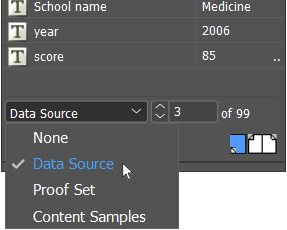
At the bottom of the Dynamic Content panel, select the Data Source option.
-
Click the Link to Data Source
 icon to
select the data source file.
icon to
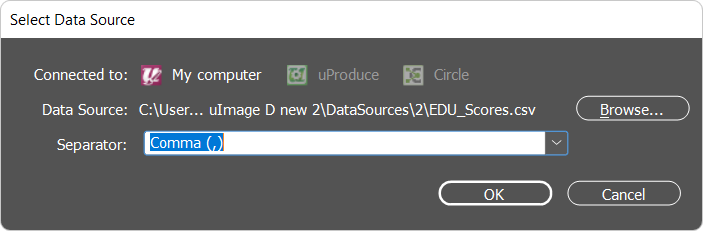
select the data source file. The Select a Data Source dialog opens.
-
Locate and select the data source to which your document is linked, and click the Open button.
The record scrolling box is displayed in bottom area of the panel. -
Use the arrows
 to choose the record you want to preview in the design. The dynamic objects
in the design are replaced with the values from the data source. The resulting
document is displayed with exactly the same values it will have in the
final production stage.
to choose the record you want to preview in the design. The dynamic objects
in the design are replaced with the values from the data source. The resulting
document is displayed with exactly the same values it will have in the
final production stage.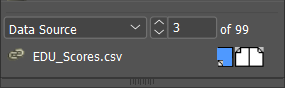
-
From the Dynamic Content menu, clear the Highlight All Content Placeholders option to view a copy of the design, as it will appear after composition.