
 View what's in this topic
Configuring Plan Parts
Note: This operation can be performed by the system admin user only. It is intended for advanced usage. Normally, configuring Plan Parts is not required.
The Plan Parts mechanism controls the activation of QLingo extensions when used in uProduce, and is therefore of interest mainly to QLingo extension users.
There are currently two Plan Part aspects that may be controlled:
-
Caching
-
A-synchronization
Caching of QLingo extensions makes it possible for an extension to define its generated content for caching. This is very useful when the calculation of the content is complex and takes a long time. A good example is uImage, which is implemented as a QLingo extension. Caching images that are generated by uImage considerably improves performance. In order to use Caching, the extension has to provide additional commands on top of the regular functionality of declaring its exported methods. If you are an extension developer, please contact XMPie support for details.
A-Synchronization is another feature of QLingo extensions that can be configured on uProduce to control the calculation of QLingo extensions. This feature allows uProduce to make asynchronous calls to QLingo extensions, essentially asking them to perform the calculations at an earlier time in the process and to get the result at a later time, allowing it to perform other tasks in the meantime. This is very useful for long calculations. Again, uImage is a good example for a long calculation that benefits from asynchronous calls methodology.
Advanced users may find it interesting to control whether caching or asynchronous calls are required for a certain extension in uProduce.
To view caching and A-synchronization parameters for QLingo extensions:
-
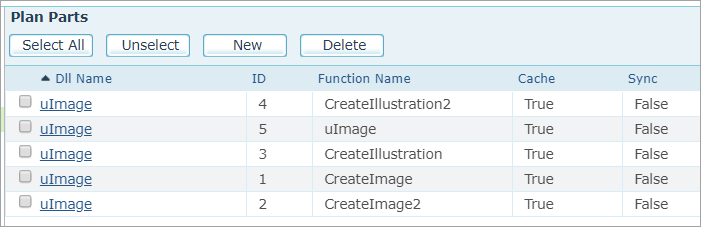
Log in to uProduce as an administrator and go to Settings> Plan Parts.
-
The Plan Parts page shows a list of installed QLingo extensions. For each QLingo extension, the list provides the following information:
Option
Description
DLL Name
The name of the QLingo extension DLL.
ID
The ID of the QLingo extension setting.
Function Name
The name of the Function.
Cache
Whether the Caching option is activated (True) or not (False).
Sync
Whether the A-synchronization is activated (False) or not (True). Please note, that A-synchronization means that the False value is selected for Synchronization.
-
From this window you can either:
-
Add a new QLingo extension and define its Caching and A-Synchronization settings.
or
-
Edit the Caching and A-Synchronization settings of the existing extensions.
-
Add a new QLingo extension
-
In the Plan Parts page, click the New button.
The New Plan Part page is displayed.
-
Specify the DLL Name and the Function Name of the new QLingo extension.
-
Set the Cache dropdown list to one of the following options:
-
True: if you wish to apply Caching to the Function results.
-
False: if no Caching should be applied.
-
-
Set the Sync dropdown list to one of the following options:
-
True: if no A-Synchronization should be applied.
-
False: if you wish to apply A-Synchronization to the Function results.
-
-
Click Save to save the results and to return to the main Plan Parts page.
Note: If a QLingo extension DLL provides more than a single Function, remember to define all of its Functions as Plan Parts using this window.