
 View what's in this topic
System Settings
Note: These operations can be performed by the system admin user only.
The following are system-level configurations available to the System admin:
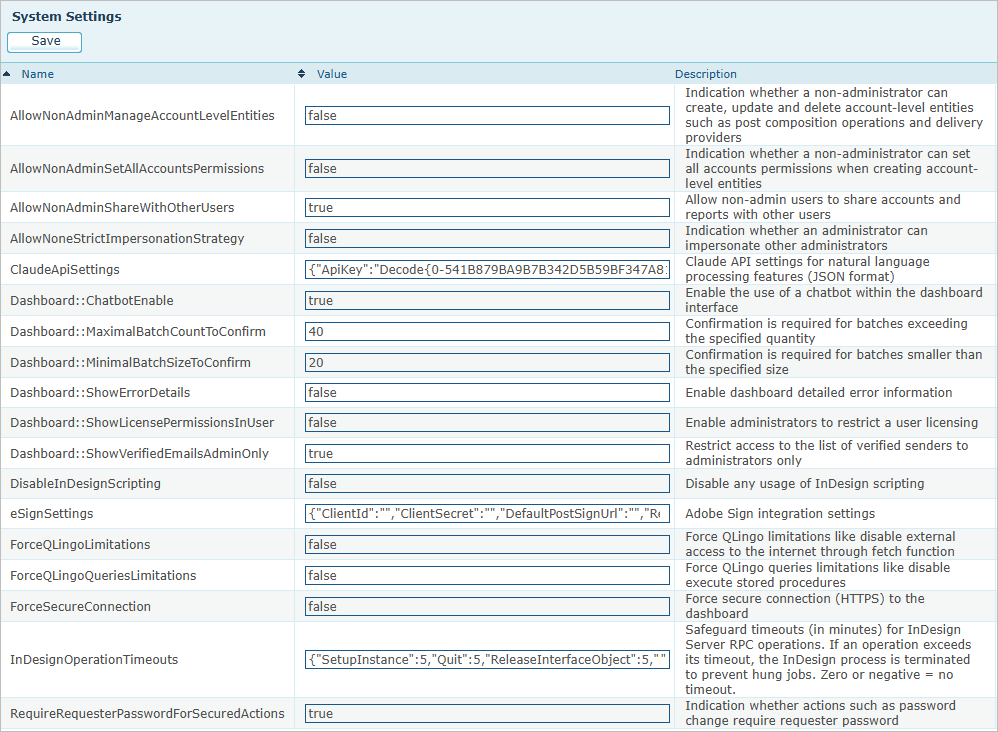
Each setting has a name, a value and a short description. To change a setting, edit its Value and click Save. Click a column heading to sort the list.
Settings whose value is true or false are switches. A few settings hold a JSON value that groups several related values together; these are listed as JSON below.
Available settings
|
Setting |
Default |
What it does |
|---|---|---|
|
AllowNonAdminManageAccountLevelEntities |
false |
Lets users who are not administrators create, edit and delete account-level items such as post composition operations and delivery providers. When off, these users can see the items but not change them. |
|
AllowNonAdminSetAllAccountsPermissions |
false |
Lets users who are not administrators make an account-level item they create available in all accounts. When off, they have to choose specific accounts. |
|
AllowNonAdminShareWithOtherUsers |
true |
Lets users who are not administrators share accounts and reports with other users. |
|
AllowNoneStrictImpersonationStrategy |
false |
Lets an administrator impersonate another administrator at the same level. When off, an administrator can impersonate only users who are not administrators. A system administrator can always impersonate an administrator. |
|
ClaudeApiSettings |
JSON |
Connection settings for the dashboard features that use the Claude API, including the API key, the model and the response limits. Contact XMPie Support before changing this value. |
|
Dashboard::ChatbotEnable |
true |
Shows the chatbot in the dashboard. |
|
Dashboard::MaximalBatchCountToConfirm |
40 |
When a user splits a job into a set number of batches, asks for confirmation if the number of batches requested is higher than this value. This guards against splitting a job into far more batches than intended. |
|
Dashboard::MinimalBatchSizeToConfirm |
20 |
When a user splits a job by records per batch, asks for confirmation if the batch size requested is lower than this value. This guards against creating a very large number of tiny batches. |
|
Dashboard::ShowErrorDetails |
false |
Adds detailed technical information to dashboard error messages. Useful while investigating a problem; leave it off in day-to-day use. |
|
Dashboard::ShowLicensePermissionsInUser |
false |
Adds licensing options to the user’s settings page, so that an administrator can limit which licensed features that user may use. |
|
Dashboard::ShowVerifiedEmailsAdminOnly |
true |
Restricts the list of verified email senders to administrators. |
|
DisableInDesignScripting |
false |
Blocks all use of InDesign scripting on the server. |
|
eSignSettings |
JSON |
Connection settings for the Adobe Sign integration, including the client ID and client secret. Contact XMPie Support before changing this value. |
|
ForceQLingoLimitations |
false |
Blocks QLingo extension functions and the fetch function, which retrieves data from the internet. A job that uses either one fails with an error. |
|
ForceQLingoQueriesLimitations |
false |
Blocks queries written in the full query syntax, which is the syntax that allows arbitrary SQL such as stored procedure calls. Queries embedded in the plan, and queries that uProduce generates itself, still run. |
|
ForceSecureConnection |
false |
Requires a secure (HTTPS) connection to the dashboard. |
|
InDesignOperationTimeouts |
JSON |
Timeouts, in minutes, for the individual InDesign Server operations. If an operation runs longer than its timeout, uProduce ends the InDesign process so that the job cannot hang. Zero or a negative number means no timeout. Contact XMPie Support before changing these values. |
|
RequireRequesterPasswordForSecuredActions |
true |
Requires users to re-enter their own password to complete a sensitive action, such as changing a password. |
|
SecureAssetURLs |
true |
Serves the personalized asset references in your output through the authenticated REST API, instead of as direct URLs into the web-exposed XMPieAssets folder. Each URL carries a signature that identifies the user to serve the asset as and that commits to that exact request, so the URL cannot be altered to reach a different asset. When off, anyone who has an asset URL can open it without signing in. Note that the signed URLs do not expire. This setting is on by default. When you upgrade, it is turned on unless an administrator has changed it before. If an integration that consumes your output relies on direct asset URLs and cannot follow REST asset URLs, turn this setting off. |