
 View what's in this topic
Setting Up AI Providers
The AI Providers area in Global Settings enables you to configure the AI services that power uStore's AI capabilities, such as image generation, content creation, translation and reports. You can connect uStore to OpenAI, Google AI or any OpenAI-compatible provider, manage the API key and model, set a monthly usage quota, decide which stores can use each provider, and send a test prompt to verify the setup.
Note: AI Provider configuration is not included when exporting a store. After importing the store to another uStore system, the AI providers must be configured from scratch.
Similarly, when exporting a product, the AI Generator settings on Gallery Image Selector dials are not preserved. They must be reconfigured on each dial after import.
To view the list of AI providers:
-
In the left panel click Global Settings, and then click AI Providers.
The Manage AI service providers page is displayed, listing all currently defined providers.
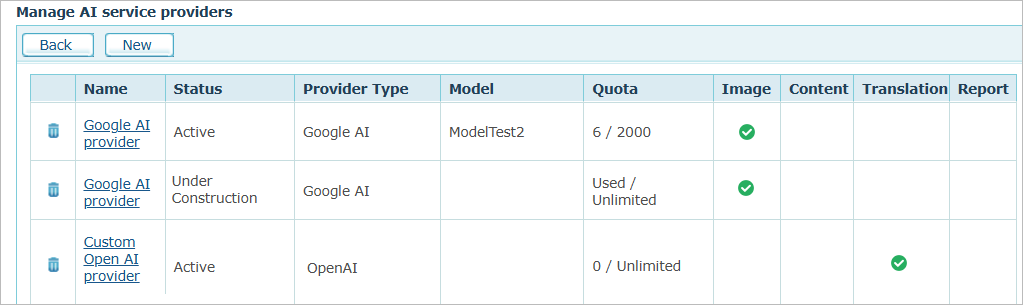
The list shows the following information for each provider:
| Column | Description |
|---|---|
|
Name |
The display name you assigned to the provider. Click the name to open the provider for editing. |
|
Status |
The current state of the provider:
Note: Once a day, uStore checks each provider's connection. For providers that use a selected model from the model list, it verifies that the model still exists for the provider. When the provider uses a manually entered Model ID, only the connection is verified. |
|
Provider Type |
The AI service: OpenAI, Google AI, or Custom (OpenAI-compatible). |
|
Model |
The model configured for the provider. |
|
Quota |
The current month usage in the form used / limit (for example, 1247 / 5000), or used / Unlimited if no limit was set. When usage reaches 90% of the monthly limit, the text turns red. On the 1st of every month, uStore resets all quotas automatically (using the server time zone). |
|
Image, Content, Translation, Report |
A green checkmark indicates which uStore capabilities the provider is configured to support. See Capabilities. |
Adding a new AI provider
To add a new AI provider:
-
On the Manage AI service providers page, click New.
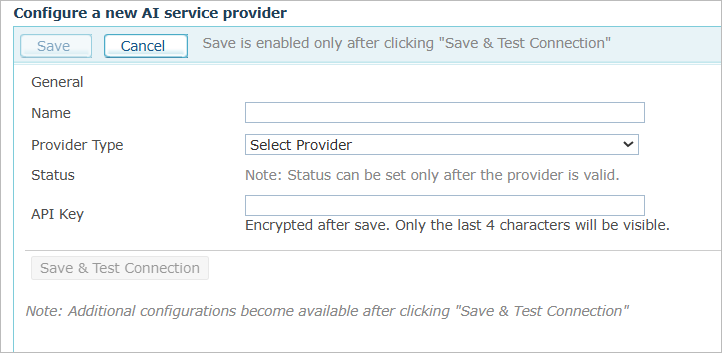
The Configure a new AI service provider page opens, showing the General section only. Additional sections become available after the connection has been successfully tested.
-
Fill in the General fields:
-
Name: A descriptive name for the provider, for example, OpenAI GPT-4.1 Content.
-
Provider Type: The AI service type. Choose one of:
-
OpenAI
-
Google AI
-
Custom (OpenAI-compatible) – any third-party service that exposes an OpenAI-compatible API. When this option is selected, the Base URL field appears and must be filled in.
-
-
Status: The state of the provider: Active, Inactive or Under Construction. For a new provider, the status is disabled until the connection test succeeds.
-
API Key: The secret key issued by the AI service. Visible while you type, and encrypted after save (only the last four characters remain visible).
-
Base URL: (Custom provider only) The endpoint URL of the OpenAI-compatible service, for example, http://api.example.com/V1.
-
-
Click Save & Test Connection.
uStore validates the connection using the API key (and for custom providers, the Base URL). Only after a successful test do the remaining configuration sections appear.
-
Configure the remaining sections – Model Configuration, Capabilities, Usage Quota, Provider Options and Test Prompt – as described below.
-
Click Save.
uStore runs the connection test again and saves the provider only if the test succeeds.
AI Service Provider Settings
Model Configuration
Defines which AI model the provider will use.
-
Model: Pick a model from the list of models supported by the selected provider. If you wish to use a model that does not appear in the list, you can do so by specifying it in the Model ID field, as detailed below.
-
Update models list: Fetches the latest model list from the AI service.
-
Model ID: As an alternative to choosing from the list, you can type a model identifier directly (for example, for a custom deployment or for a model that is not yet published by the provider). Connection testing does not verify a Model ID.
For Custom (OpenAI-compatible) providers, the Model ID field is the only way to specify a model – the model list is disabled.
Capabilities
Under Use this provider for, select which uStore features this provider will serve.
-
Image Generator: The provider generates images for the storefront. Within this option, you can also select:
-
Storefront Content Generator: The provider also produces textual or visual content that accompanies the generated image in the storefront.
-
-
Text Generator (Future): Reserved for an upcoming release.
Usage Quota
-
Monthly Call Limit: The maximum number of calls allowed per month. Select one of:
-
Unlimited – no monthly cap.
-
Limit to – enter a positive integer in the calls per month box. Zero is not accepted.
-
-
Current Month Usage: The number of calls made in the current month, with the percentage of the limit used (for example, 1247 calls this month (25% of limit)).
-
Show Usage Per Store / Hide Usage Per Store: Click the link to expand or collapse a breakdown of calls per store. Each row shows the store name and the number of calls (for example, CoffeeBest (1200 used)).
-
-
Used In Stores: Determines which stores may use this provider. Select one of:
-
All Stores – Every existing store, as well as any store created later, can use this provider.
-
Selected Stores – A checklist of the stores is displayed in alphabetical order. By default, no store is selected.
-
Provider Options
-
Provider Configuration: An optional JSON object that is passed to the AI service with each call. Use it to set provider-specific parameters such as temperature, max_tokens or top_p.
The field is empty by default and shows a sample JSON as ghost text. uStore does not validate the JSON content.
Click the Learn and get samples from here link to open the AI Providers JSON Configuration Examples page on GitHub, which contains ready-made samples for each supported provider type.
Test Prompt
Use this section to verify that the provider actually responds to a request before activating it.
-
Prompt: The text of the test prompt (for example, A cute cat wearing sunglasses on the beach). The field is empty by default.
-
Save & Send Test Prompt: Saves the current settings and sends the prompt.
-
Result: Shows the response from the AI service.