
 View what's in this topic
Setting Up the Province Table
Similar to the country table, the Province table includes information regarding the province/state in which your store(s) and potential customers are located.
If a province is marked as supported for a certain store, it cannot be deleted from the Province table.
To add a province:
-
In the left panel click Global Settings, and then select System Setup.
-
In the System Setup list, click Province.
-
Click the Add New button.
-
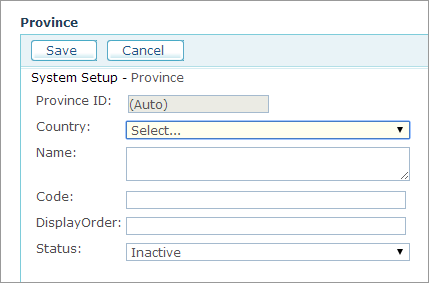
Fill in the following fields:
-
Country: Select the country, in which the province is located.
-
Name: Province name.
-
Code: Province code. For example, enter ‘NY’ for New York.
-
Display Order: Unique number that will determine the location of this province in the relevant dropdown lists in the system.
-
Status: Select whether to activate this province table entry (Active) or deactivate it (Inactive).
-
-
Click Save.
Once provinces are enabled, you can set those provinces onto your stores.
-
Go to Store Setup > Appearance tab > Supported Locations, and select the checkboxes of the provinces you want to enable customers to use in this store. See Defining Localization Settings.
Note: In the Province list, the Country column shows the country's ID rather than its name. To find the provinces of a particular country, note its Country ID in the Country table and filter the Country column by that value.
Note: Provinces are activated one at a time. There is no action for activating all the provinces of a country at once.
The new provinces are now available in the storefront.
To edit the province table localized text:
-
Click the Edit Localized Text button in the Province Edit or View pages.
The Localization page for the selected Province table is displayed. -
Click Add New to add a new localized text or Edit
 to edit an existing one.
The selected table’s Localization page is displayed.Note: You are required to add en-US localization prior to adding a localization for any other language.
-
Fill in the Name field in your local language.
-
Click Save to save your settings.