
 View what's in this topic
Creating a new project from a sample
When you create a new project, the Sample Projects panel opens. From this panel you can start a blank project from scratch, or base your new project on a ready-made sample project, created by XMPie or one of its partners. Starting from a sample gives you a project that already contains a flow diagram, so you can begin building right away instead of planning the flow from the beginning.
Each sample project is displayed as a card showing its image, name and description.
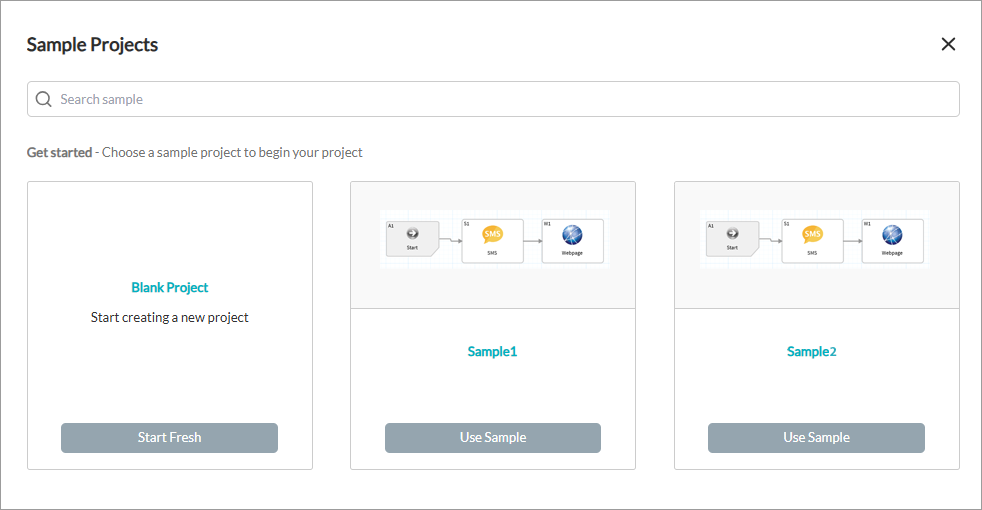
Creating a project from a sample
-
From the File menu, select Open/Organize, and then click New Project.
The Sample Projects panel opens.
-
To create a project from a sample, on the card of the sample you want to use, click Use Sample.
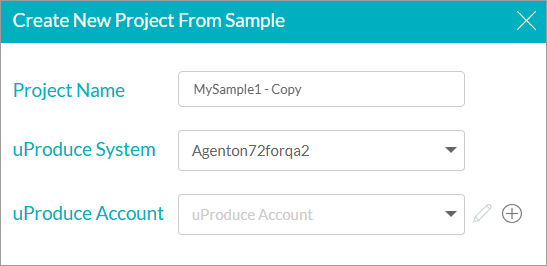
The Create New Project From Sample dialog box opens.
-
In the Project Name field, type a name for the new project.
By default, the field is filled with the sample name followed by - Copy. You can keep this name or replace it. The name must be unique.
-
From the uProduce System dropdown list, select the uProduce system to connect the project to.
Only those uProduce systems to which your Circle account has access permissions are available. If only one system is available, it is selected automatically.
-
From the uProduce Account dropdown list, select an account.
Available accounts are determined by your uProduce system credentials. Only those accounts accessible by the specified credentials are displayed in the list.
You can also click the Add icon to create a new uProduce account, or select an account and click the Edit icon to change its details. For more information, see Connecting to uProduce.
-
Click Open.
The new project is created from the sample and opens in the Plan view, with the sample's flow diagram already in place. Note that this process can take some time.
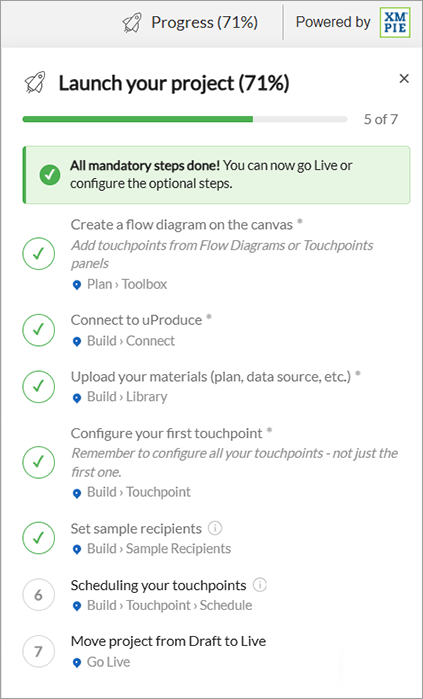
Once the new project is created, you can continue modifying it: replace the data source, customize the touchpoints, etc. You can click the Progress link at the top right corner, to open the Launch your project panel, which guides you through the various steps of completing your project.
Note: If Circle cannot connect to the selected uProduce system because the credentials are invalid, a message is displayed with a Change credentials link. Click the link to specify the uProduce user name and password, and then click Save & Connect.