
 View what's in this topic
Defining Production Settings Templates
Processing a document requires defining many parameters, such as imposition, policies, JDF and more. These parameters are known as Production settings.
To ease this lengthy process, you can save production settings as a template, and use it repeatedly for the same or for different documents.
The Production Settings template can be defined either in the document’s Process page or in the Production Settings section.
The Production Settings templates page lists all global templates and user-defined templates associated with the accounts that are accessible for the current user.
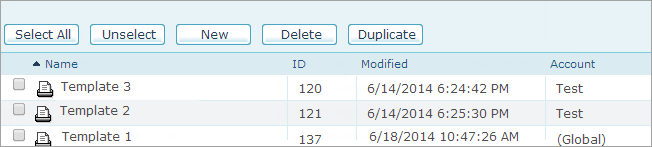
On this page you can do the following:
-
Create a new template
-
Edit an existing template
-
Duplicate a template. You will be prompted to rename the template.
-
Delete a template.
Users can only edit or delete user-defined templates which they are allowed to view. Global templates can only be edited or deleted by an administrator. Any user can duplicate any template and save it as a new template.
Create a new template
-
On the toolbar, click Settings and then click Production Settings on the left panel.
Click the New button.
The New Global Production Settings Template page opens. This page is a near replica of the Process page.
-
Enter a name for the new template.
-
Fill in the sections of the page. For information on the different sections, see Producing Print Output Files.
-
Click Save.
-
If you are an administrator, clicking Save will automatically save the template as a Global template. Global templates are available to all uProduce users. If you are not an administrator, the Save Template window is displayed prompting you to select an account in which this template will be saved. Select an account and click Save.
Notes:
-
Templates do not include production parameters that have been defined in the Input Data and Tracking sections of the Process page, since these are campaign-specific.
-
The VDX print format cannot be saved as a template.