View what's in this topic
Upload Product Properties, Pricing and Delivery
Product properties
Upload products have the following mandatory product properties:
-
The Color property enables you to select whether to print in black and white or whether to use color.
-
The Double Sided Printing property enables you to select whether to print on one side of the sheet or on both sides.
These properties cannot be deleted or edited, but you can change the default displayed option and select whether it is visible to the customer or not.
Property units
Unlike other products in uStore, whose property is set per units of products, the upload product properties are set per property unit, which is a page or a sheet. This is due to the fact that in an Upload product the number of pages and its content are not known in advance.
In the Product Properties page of Upload products the Property Unit column appears. Two types of units are available: page and sheet. In this column you define whether the Upload product property applies to a page or a sheet.
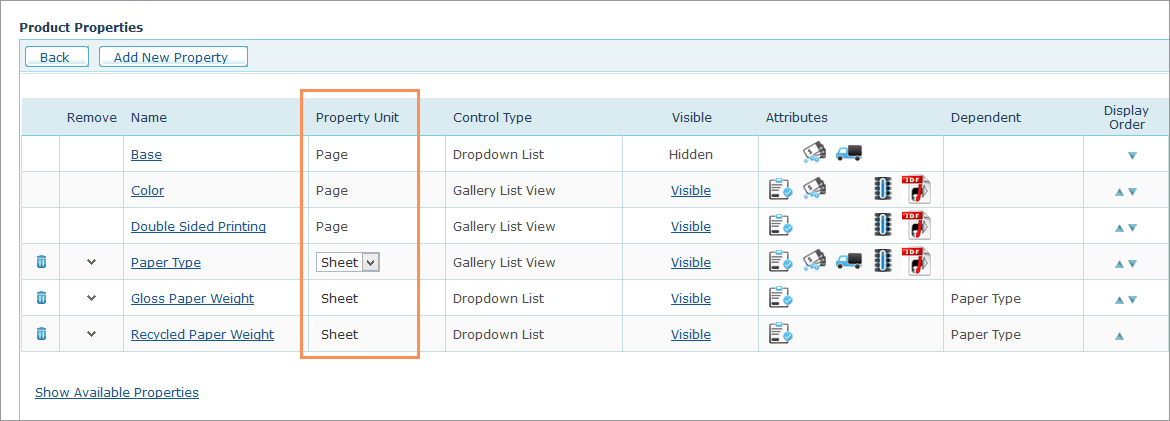
For example, Paper Weight (80 gram, 120 gram) and Paper Type (matte, gloss) properties usually apply to sheets, whereas Color printing applies to pages. By default, all properties are set by page.
If the product property affects pricing, the pricing will be calculated per property unit. See Pricing below.
Notes:
-
If the property is a sub property, its property unit will be set to the same property unit as the property on which it is dependent. For example, Recycled Paper Weight is a sub property of Paper Type (Recycled). The property unit of Paper Type is sheet, therefore the property unit of Recycled Paper Weight is also sheet.
-
The property unit of Base, Color and Double-Sided Printing is page. It cannot be changed since these are out-of-the box properties.
In the storefront, when the customer applies a property value for a specific page, the property will affect the property unit that was defined in the backoffice. If the property was defined for a page, only the selected page will be affected by it. If it was defined per sheet, it will affect both pages of the sheet, that is the selected page and the page preceding or following it.
In the Document Builder, the customer may edit the document and change the location of pages in the file by simply dragging and dropping pages. If the customer drags a page from one location (where the sheet property is X), to join another sheet in a new location (where the sheet property is Y), a new sheet combination is created. The question arises as to which property value will affect this new combination sheet? The original value of the sheet or that of the page that has joined the sheet?
In case of a new sheet combination which is a result of a page being moved, the sheet's property value is set according to the front page of the sheet.
In the following example, the paper type property value of the first sheet is matte, while the paper type property value of the second is gloss.
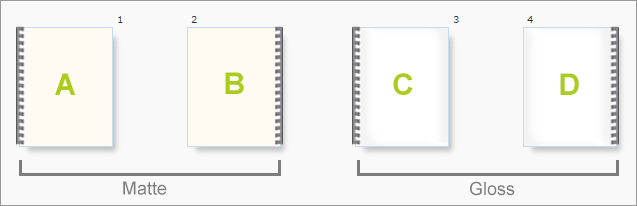
When moving C to page 2, the result is as follows:
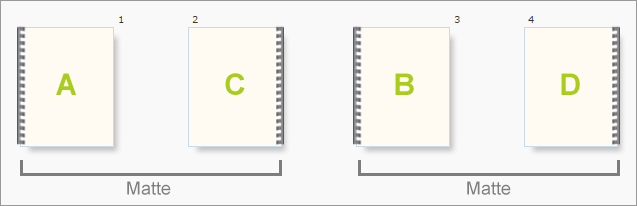
The sheet property (paper type) value of C has changed from gloss to matte since it is now part of the first sheet, whose paper type value is set by its front page to matte. As a result of this move the paper type value of the second sheet has changed from gloss to matte, since the sheet has a new combination of pages where the front page (B) paper type value is matte.
Let's go back to the first image. If we move C to page 1, the result will be as follows:
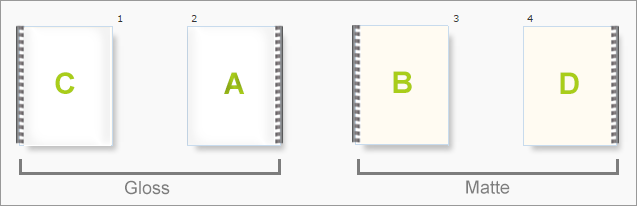
The property (paper type) value of the first sheet changed from matte go gloss because C became the sheet's front page, which sets the sheet's property value. The same occurred for the second sheet.
Pricing
The Upload product pricing is set per property unit (a page or a sheet). This is due to the fact that in Upload products the number of pages and its content are not known in advance.
In the Upload product pricing page you can see the property unit in the PropertyUnit column.
The pricing steps, set in the SetPrice Steps tab, are set per unit (page/sheet). If you set a step of 50+ units, this means 50+ items of the selected property unit. For example, for the Color page property the step will contain 50+ pages, and for the Paper Type sheet property it will contain 50+ sheets.
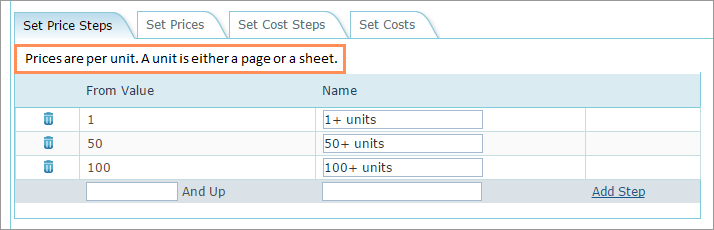
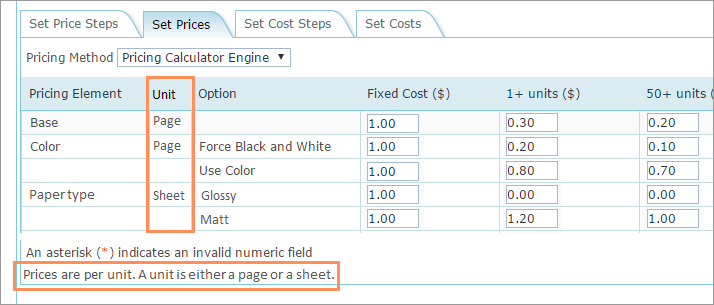
In the Set Prices tab you define the actual price per each step.
For the Color property the price will be per page, and the steps will be calculated accordingly (1+ pages, 50+ pages, and so on). For the Paper Type property, the price will be per sheet (1+ sheets, 50+ sheets, and so on).
Pricing calculation example
To help you better understand how applying properties to pages and sheets affects pricing and printing, we will use an example.
The following four-page document has been uploaded by the user in the storefront. Its' properties are as follows:
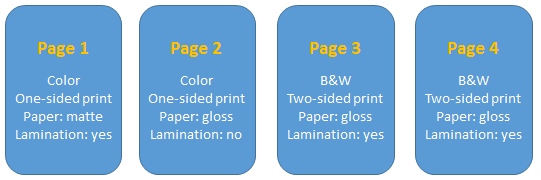
This is how the final document will be printed:
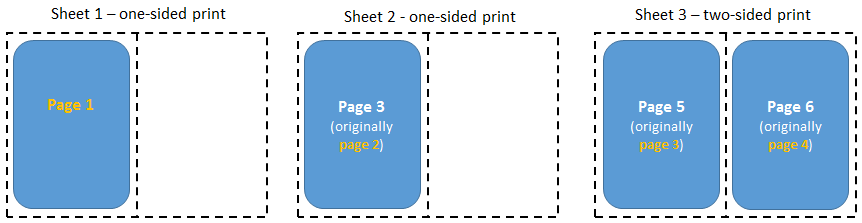
This is the property pricing table:
|
Property |
Property Unit |
Price |
|---|---|---|
|
Base |
Page |
5 |
|
Color: Color |
Page |
4 |
|
Color: B&W |
Page |
2 |
|
Paper type: matte |
Sheet |
0.4 |
|
Paper type: gloss |
Sheet |
0.2 |
|
Lamination |
Page |
0.3 |
The pricing calculation for this document is as follows:
|
Property Price |
Sheet 1 Front |
Sheet 1 Back |
Sheet 2 Front |
Sheet 2 Back |
Sheet 3 Front |
Sheet 3 Back |
|---|---|---|---|---|---|---|
|
Base* |
5 |
5 |
5 |
5 |
5 |
5 |
|
Color |
4 |
-- |
4 |
-- |
2 |
2 |
|
Lamination |
0.3 |
-- |
-- |
-- |
0.3 |
0.3 |
|
Paper Type |
0.4 |
0.2 |
0.2 |
|||
* This property is calculated for each page, even if blank.
Delivery
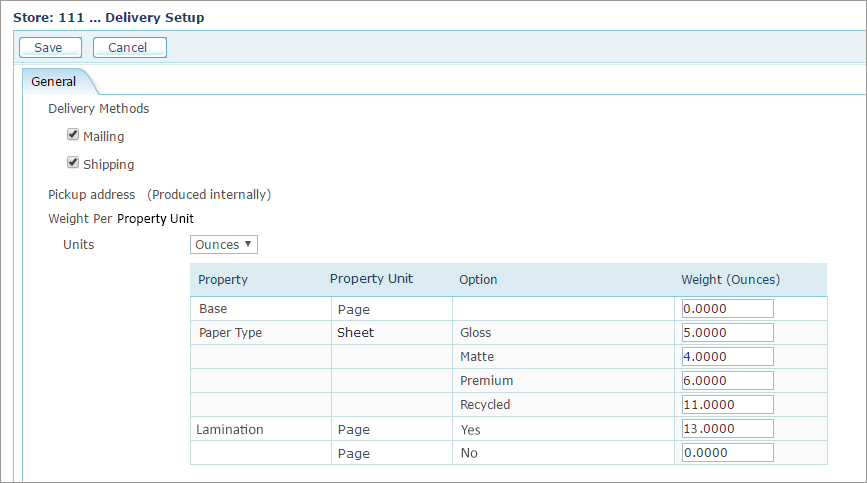
Delivery is calculated by weight.
The calculation of the delivery price is according to the unit weight multiplied by the number of units (e.g. sheet weight X no. of sheets).
For example, Lamination can be applied to a page unit, therefore the weight is multiplied by the number of pages; Paper Type applies to a sheet unit, therefore the weight is multiplied by the number of sheets.
In the following example, the Weight column holds the weight of a single property unit.