
 View what's in this topic
User Groups Types
There are two types of user groups:
-
Default user groups: Predefined user groups with a given set of permissions. uStore has several default user groups: Customer, Operator, Administrator, Superuser, Anonymous. For a full description of the default groups, see Default user groups below.
-
User groups created based on the default user groups.
User groups can be created either automatically, upon creation of a new store, or manually, by the uStore administrator. Each new user group is based on a default user group and inherits all its permissions. uStore administrators can edit existing or add new user groups and control their permissions. Each user is then assigned to a certain user group and inherits all the permissions of that group.
To access the user groups page, on the menu bar click Users and then select Groups.
The User Groups page displays the list of all user groups, and allows you to filter the list.
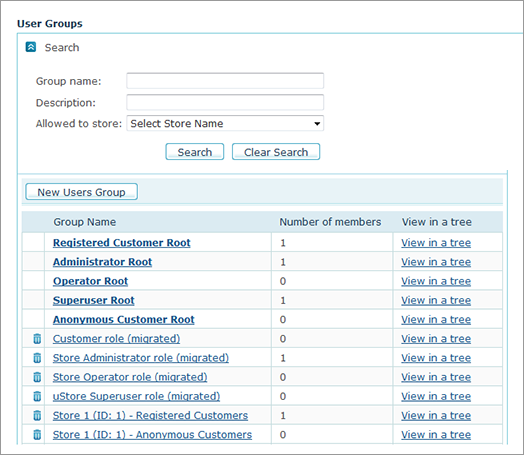
The user groups list can be viewed in two modes:
-
Grid view (default)
-
Tree view
The grid view displays the following information:
-
Group Name: The name of the user group. The default user groups appear first in the list.
-
Number of members: The number of users assigned to the user group.
-
View in a tree: Clicking this link switches the user list display from the default grid view to a hierarchical tree view.
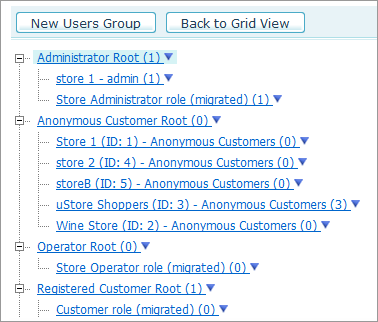
The tree view displays all user groups and sub-groups in a hierarchical order. The number of users in the group is indicated in parenthesis next to the group name.
The default user groups are displayed as the root directories. Under each root directory, you may see the non-default user groups that inherit permissions from the given default user group. The non-default user groups can also contain sub-groups that inherit permissions from them.
Clicking the user group name opens the User Group Setup page of the selected user group.
To return to the table view, click Back to Grid View.
Default user groups
|
Default User Groups |
Description |
Managed Users |
Available uStore Admin Views |
Accessible uStore Storefront Stores |
|
Customer (Registered Users) |
Uses the uStore storefront application to connect to online stores, and customize and order the desired product(s). |
None |
None (cannot access the uStore backoffice application, only the uStore storefront application) |
Stores to which the superuser or store administrator granted access |
|
Store Operator |
Prioritizes the orders received from the uStore storefront application and adds them to the uProduce Server’s production queue. |
None |
Orders: can only view and process the orders of stores the store operator has permission to access |
Stores to which the superuser granted access |
|
Store Administrator |
Edits stores the administrator has permission to access (which were created by the Superuser Root) and manages the products and customers of the stores the administrator has permission to access. |
The customers of the stores that the administrator has permission to access. |
|
Stores to which the superuser granted access |
|
Superuser Root |
The
only User Group whose users have permissions to create new stores
and administrator-type users. |
All |
All |
All stores |
|
Anonymous |
Can see all products and product groups in a store, but cannot execute orders unless registered. Has no access to the uStore backoffice. |
None |
None |
Public stores to which the Anonymous user Group is granted access |
Note: The following groups only function as templates for the creation of other groups. Users that are assigned to these groups will not be able to log into the system. If you want users to have the permissions of these groups, you need to create new groups that inherit their permissions, and assign the users to the new groups:
-
Administrator Root
-
Operator Root
-
Registered Customer Root