View what's in this topic
Opening and organizing projects
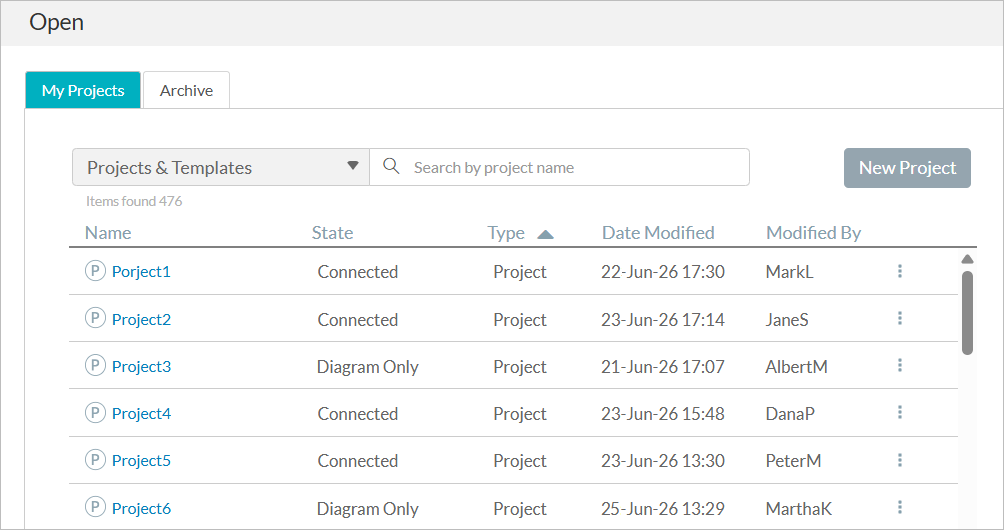
The Open screen is where you find, open, and organize your projects, templates, and instances. To display it, from the File menu, select Open/Organize.
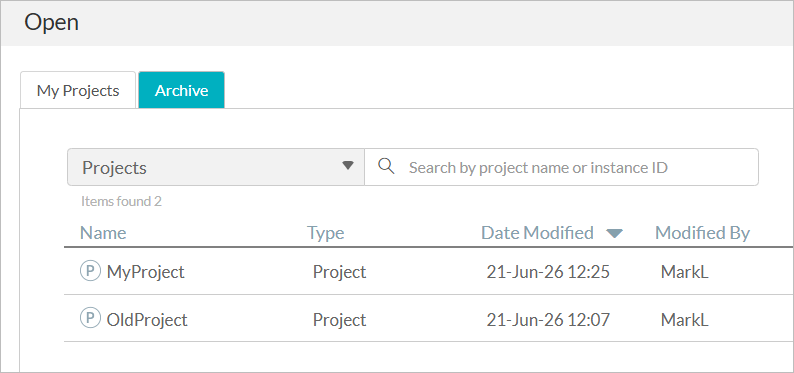
The screen has two tabs: My Projects, which lists your active items, and Archive, which lists items you have archived.
Creating a new project
To create a new project, click New Project. The Sample Projects panel opens, where you can start from a blank project or a sample. See Creating a new project from a sample or Creating a new project from scratch.
My Projects
The My Projects tab lists your active projects, templates, and instances.
Filter the list
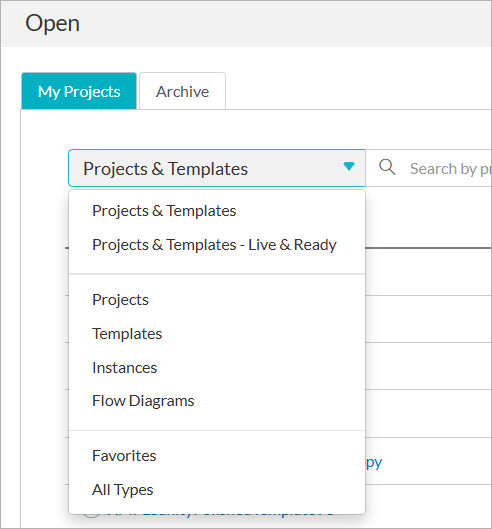
Use the filter list (above the project list) to show a specific group of items:
-
Projects & Templates
-
Projects & Templates - Live & Ready
-
Projects
-
Templates - see About templates and instances.
-
Instances - see About templates and instances.
-
Flow Diagrams - see Flow diagrams.
-
Favorites - see Marking projects as favorites.
-
All Types
Search
To find an item by name, type part of its name in the Search by project name box.
Project information
Each item in the list shows its Name, State, Type, Date Modified, and Modified By. Click a column heading to sort by that column.
The State indicates the item's connection to uProduce:
-
Diagram Only - the item contains only a diagram and is not connected to uProduce.
-
Connected - the item is connected to uProduce. For items running in live automation, the state also shows Live (projects and instances) or Ready (templates); a limited instance shows Limited.
The Type is Project, Template, Instance, or Flow Diagram.
Project actions
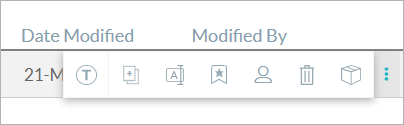
Hover over an item and click the 3-dot menu icon to display its actions:
-
Duplicate - create a copy of the item. See Duplicating a project.
-
Rename - change the item's name.
-
Favorites - add the item to, or remove it from, your favorites. See Marking projects as favorites.
-
Delete - permanently remove the item.
-
Archive - move the item to the Archive tab.
Note: Additional actions appear depending on the item - for example, Set as Template for a project (see About templates and instances), or Manage Recipient for an instance.
Marking projects as favorites
Mark the items you work with most as favorites, so you can find them quickly. Favorites are personal to you - each user has their own.
To mark an item as a favorite:
-
Hover over the item and click the 3-dot menu icon.
-
Click Add to Favorites.
To remove an item from your favorites, open its menu and click Remove from Favorites.
To show only your favorites, select Favorites from the filter list.
Archive
Archiving an item moves it out of My Projects to the Archive tab, keeping your active list focused. To archive an item, open its menu in My Projects and click Archive.
Note: Archiving and un-archiving projects require the appropriate permissions. See User Roles and Permissions.
The Archive tab has its own filter list and search box (you can search by project name or instance ID).
To restore an archived item, hover over it, click the 3-dot menu icon, and click Un-archive. The item returns to the My Projects tab.