
 View what's in this topic
Testing and sending an email
After you have configured your email touchpoint, you can test it. Testing can be performed for both mass and triggered email.
Testing is useful to preview the email content in different email clients. You can send a test email to yourself or to a recipient that is not defined in the list. No tracking is activated when testing.
Once you have finished testing, you can proceed to actually sending the email.
Test an email touchpoint
-
In the diagram, click the Production icon
 above the touchpoint to open the Production
dialog box.
above the touchpoint to open the Production
dialog box.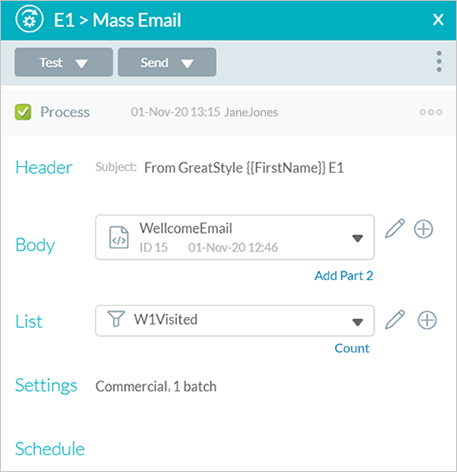
-
Click Test.
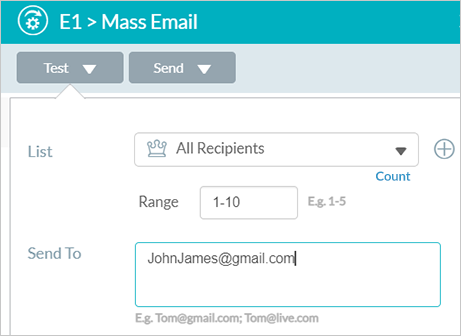
The Test dialog box is displayed.
-
From the List dropdown list, select the filtered list for which you wish to execute a test. To create a new filtered list, click the Add icon
 . See Adding
a list.
. See Adding
a list. -
Select a range of recipients. By default the range of 1-10 is selected. Initial testing is usually performed for a few records at a time in order not to waste time on testing the entire list.
-
In the Send to field, enter the email addresses of the test email recipients. It is recommended to send test email to a range of email viewers (for example, Gmail, Yahoo mail, Microsoft Outlook) since email content may look different in each one of them.
-
Click Test.
The test is performed. Tracking is never recorded and no notifications are sent while testing.
The last run details are displayed in the Production dialog box.

Test runs are shown in the Run Center.
Send mass email
-
In the diagram, click the Production icon
above the touchpoint to open the Production
dialog box.
-
Click Send.
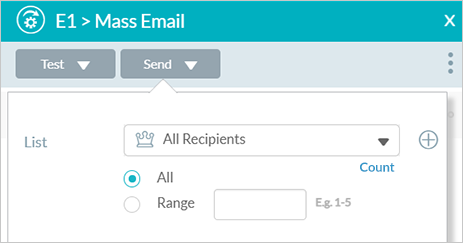
The Send dialog box is displayed.
-
In the List dropdown list, make sure that the selected list is correct. You can select a different list to run production for a subset of recipients (for example, those recipients that were skipped in the previous run). To create a new filtered list, click the Add icon
. See Adding
a list. -
Select a range of recipients. By default All is selected. To define a specific range, select the Range radio button and enter the range of recipients. Changing the range is useful to send email in batches to avoid website overload.
-
Click Send.
The last run details are displayed in the Production dialog box.