
 View what's in this topic
Working with Audiences
The Audience feature lets you divide your recipients into segments — for example, by age group, family status, profession, or location. Each segment represents a group of recipients with common needs, interests, and preferences.
You can personalize your document so that each segment sees different content. For example, you might show one image to Single Males and a different one to Young Families. Each segment is defined by a condition that determines which recipients belong to it.
The example used throughout the Audience topics focuses on a target audience divided into four segments:
-
Single males
-
Single females
-
Young families
-
Retired couples
Audiences panel
The Audiences panel is your central location for working with audiences. From the panel you can create new audiences, edit audiences, delete audiences, and more.
If the panel is not displayed, you can access it by clicking the Dynamic Content menu and selecting Show Window > Audiences.
Each defined audience appears as a folder. Expand a folder to view the segments that make up the audience.
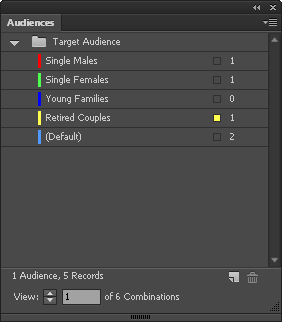
If multiple audiences are displayed, you can drag them up and down to change their order on the panel, but you cannot change the order of the segments. This can only be done in the Rule Designer when creating or editing the audience.
To the right of each segment appears the number of recipient records included in the segment.
The segment of the currently displayed recipient is marked on the panel with a small square that matches the color of the segment. In the above image, the active recipient is part of the Single Males segment.
At the bottom of the panel you can see the number of defined audiences and the number of records displayed. You can add a new audience by clicking the + (plus) button, and delete the selected audience by clicking the trash icon.
From the Audiences panel you can perform several audience management functions:
-
Edit an existing audience: Right-click the audience in the panel and select Edit Audience. The audience opens in the Rule Designer, where you can change its name, segments, and segment conditions.
-
Edit linked objects: Right-click the audience in the panel and select Edit Linked Objects to update the values of all content objects and variables linked to the audience, segment by segment. See Maintaining Audiences.
-
Duplicate an audience: A duplicated audience is copied with all of its segments, and receives the name of the original audience, followed by [copy]. Once duplicated, you can edit its parameters in the Rule Designer when editing the audience.
-
Delete an audience: You can delete an entire audience; however, individual segments of a specific audience can only be deleted in the Rule Designer when editing the audience.
If the audience which you are trying to delete is linked to content objects/variables, after deleting the audience these content objects/variables will become unlinked and their value will be replaced with the value of the default segment.