
 View what's in this topic
Working with Audiences
Audience is a feature which enables you to break down your target audience into segments. Each segment represents a group of recipients to which you can apply rules.
This feature enables you to divide a broad target market into segments of, for example, consumers, professions, age groups, and locations, each having common needs, interests, and preferences. You can then design and implement a market strategy to target each segment, adjusting your offer to the attributes and parameters of each.
For example, you can plan a marketing strategy that targets singles and families, on the assumption that each segment requires a different marketing approach to achieve maximum results.
The example which we will follow when explaining this feature focuses on a target audience which is divided into four segments:
-
Single males
-
Single females
-
Young families
-
Retired couples
Audiences panel
The Audiences panel is your central location for working with audiences. From the panel you can create new audiences, edit audiences, delete audiences, and more.
If the panel is not displayed, you can access it by clicking the Dynamic Content menu and selecting Show Window > Audiences.
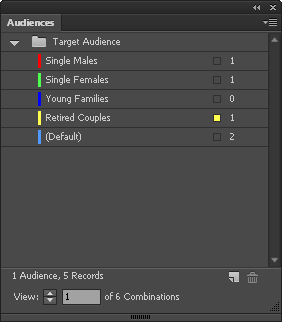
The top part of the panel displays a folder with the name of the audience that has been defined, if any, and below it, a list of all segments which make up the audience.
If multiple audiences are displayed, you can drag them up and down to change their order on the panel, but you cannot change the order of the segments. This can only be done in the New/Edit Audience dialog box.
To the right of each segment appears the number of recipient records included in the segment.
The segment which the currently displayed recipient belongs to is marked on the panel with a small square that matches the color of the segment. In the above image, the active recipient is part of the Retired Couples segment.
At the bottom of the panel you can see the number of defined audiences and the total number of records.
From the Audiences panel menu you can perform several audience management functions:
-
Edit an existing audience
-
Duplicate an audience: A duplicated audience is copied with all of its segments, and receives the name of the original audience, followed by [copy]. Once duplicated, you can edit its parameters in the Edit Audience dialog box.
-
Delete an audience: You can delete an entire audience; however, individual segments of a specific audience can only be deleted in the Edit Audience dialog box.
If the audience which you are trying to delete is linked to content objects/variables, after deleting the audience these content objects/variables will become unlinked and their value will be replaced with the value of the default segment.