
 View what's in this topic
Setting Up the Delivery Service Package Table
The Delivery Service Package table allows you to associate a delivery service with a delivery package. For example, a small box and a poster tube could both be shipped using the same service, such as Next Day or 2-Day.
Every package must be associated with at least one delivery service. A package that is not associated with any service is never selected at checkout. If it is the only package large enough for a product in the order, no delivery services are offered for that order. For more information, see Setting Up Delivery.
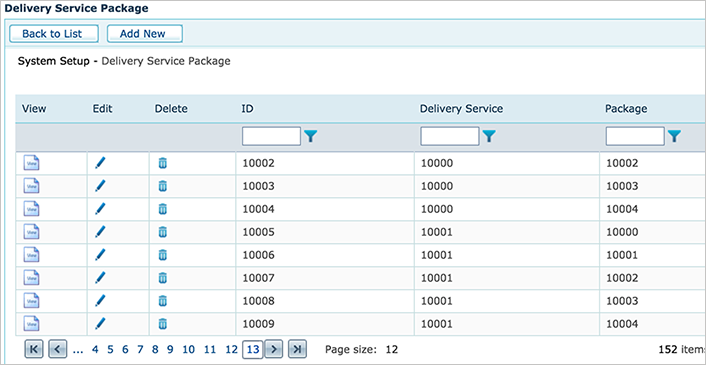
Note: The list displays the ID of the delivery service and of the package, not their names. To see which service and package an entry refers to, click View or Edit.
To associate a delivery package with a delivery service:
-
In the left panel click Global Settings, and then select System Setup.
-
In the System Setup list, click Delivery Service Package.
The list of all defined delivery service packages is displayed.
-
Click the Add New button.
-
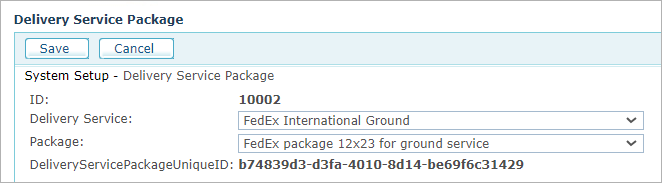
Fill in the following fields:
-
ID: Assigned automatically when you save the entry.
-
Delivery Service: Select the delivery service to associate. The list includes the services defined in the Delivery Services table.
-
Package: Select the package to associate with this service. The list includes the packages defined in the Delivery Package table.
-
DeliveryServicePackageUniqueID: Assigned automatically when you save the entry.
-
-
Click Save.
To associate the same service with more packages, or the same package with more services, add an entry for each combination.
More topics
Setting Up the Delivery Package Table